
Delete Your Data at Discover Claims
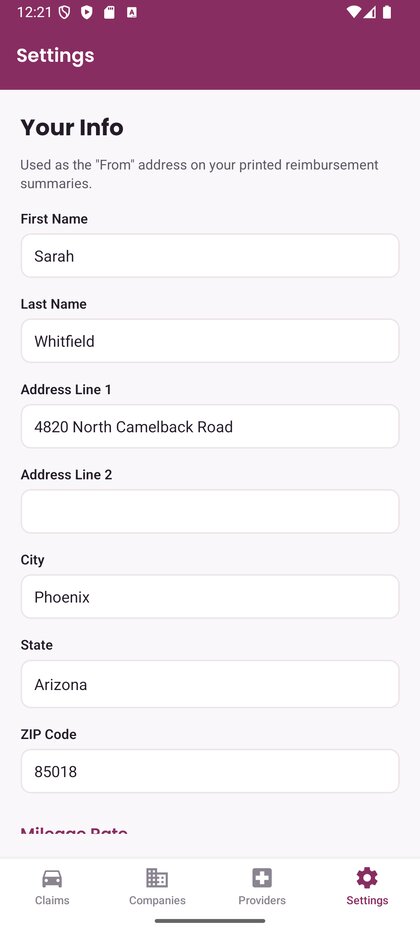
The Discover ClaimsTM app doesn’t use accounts, and it doesn’t send your information to us. Your personal details, insurance companies, providers, claims, and trips are stored only on your phone, so you decide when they’re deleted.
Delete Individual Items
You can edit or delete claims, providers, and insurance companies right in the app. To delete an insurance company, first delete any claims that use it.
Delete All of Your Data
Either of these options permanently removes everything the app has stored on your phone:
- Clear the app’s storage: open your phone’s Settings, go to Apps, then Discover Claims, then Storage & cache, and tap Clear storage. The app stays installed and starts fresh the next time you open it.
- Uninstall the app: uninstalling Discover Claims deletes all of its data from your phone.
Menu names can vary slightly by phone manufacturer and Android version. Deleted data can’t be recovered, so print or save a PDF of any reimbursement summaries you still need first.
If Android backup is turned on, your phone may include app data in your Google account backup. You can manage or delete that backup in your phone’s Google backup settings.
Feedback You’ve Sent Us
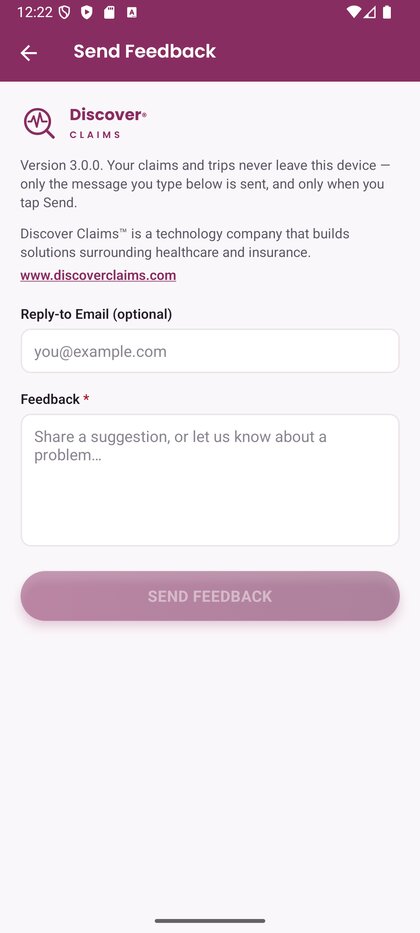
If you’ve used Send Feedback in the app, we received your message and, if you entered one, your reply-to email address. To have them deleted, email dcsupport@discoverclaims.com.